Home
Search, up to seven favorites, and Jump back in: the apps you opened last, newest first. When something on HDMI turns on, it leads that row and OK switches to it.
Android TV // Home screen // v0.1
A neon home screen for Android TV. Your apps as big glowing tiles, the art of whatever you’re on filling the background, a music bar that shows what’s actually playing, and your HDMI inputs named after what’s plugged in. No ads, no rows of recommendations, and it works offline.
Click the screen to take the remote. Arrow keys move, Enter opens, hold Enter for options, Esc goes back.Open the demo full screen to play with an on-screen remote.
| ARROWS | Move around. Past the end of a row carries on to the next one. |
|---|---|
| OK | Open the app or input. |
| HOLD OK | Options: pin, move, info, uninstall. On inputs: switch, name, audio out. |
| BACK | Climb back up: first row, then the tab, then Home. |
| HOLD BACK | Jump To. |
Search, up to seven favorites, and Jump back in: the apps you opened last, newest first. When something on HDMI turns on, it leads that row and OK switches to it.
Everything on your TV, grouped by kind: streaming, free and video, live TV and sports, music, kids, games, your media and tools. The manuals and updaters TVs come with stay out of the way.
What’s playing, the artist and the track time, with play and pause. Long titles scroll like a car stereo.
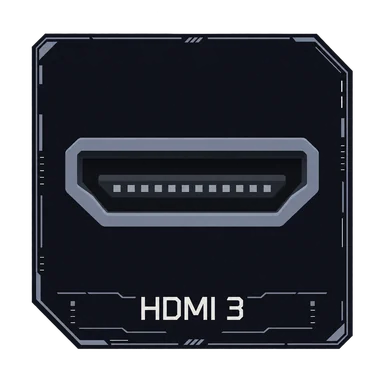
Your HDMI ports, named after the device on them when it says what it is, or whatever you want to call them. A soundbar port can be marked as audio out so it never gets in the way.
Hold Back anywhere for the quick panel: picture and sound settings, an accent color that tints everything, Lite mode for slower TVs, Lime mode, the away screen timer and more.
Hold OK on an app and pick Move. It lifts, the arrows slide it anywhere, OK drops it. Install or remove an app and Home Deck updates itself.
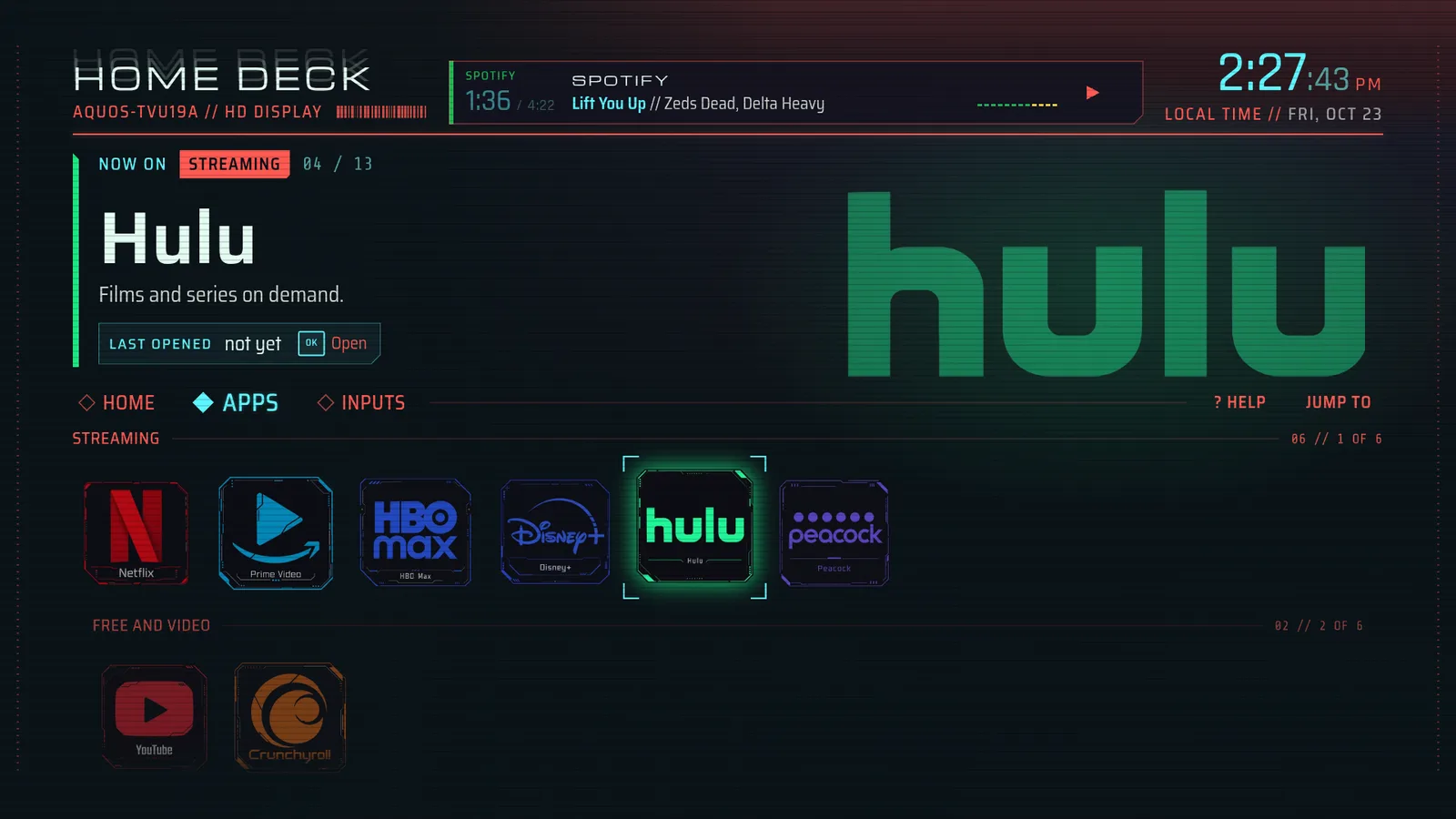
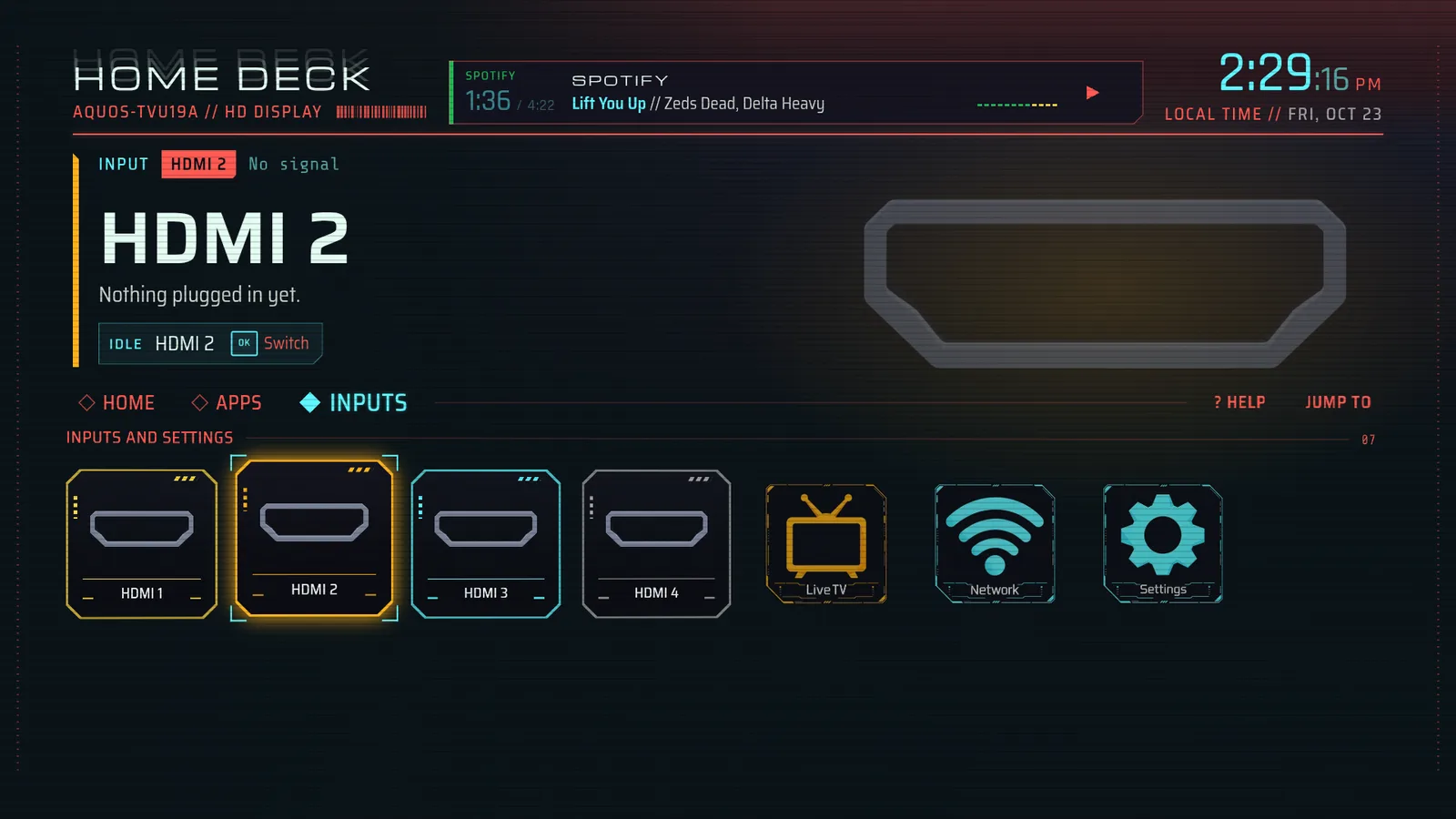
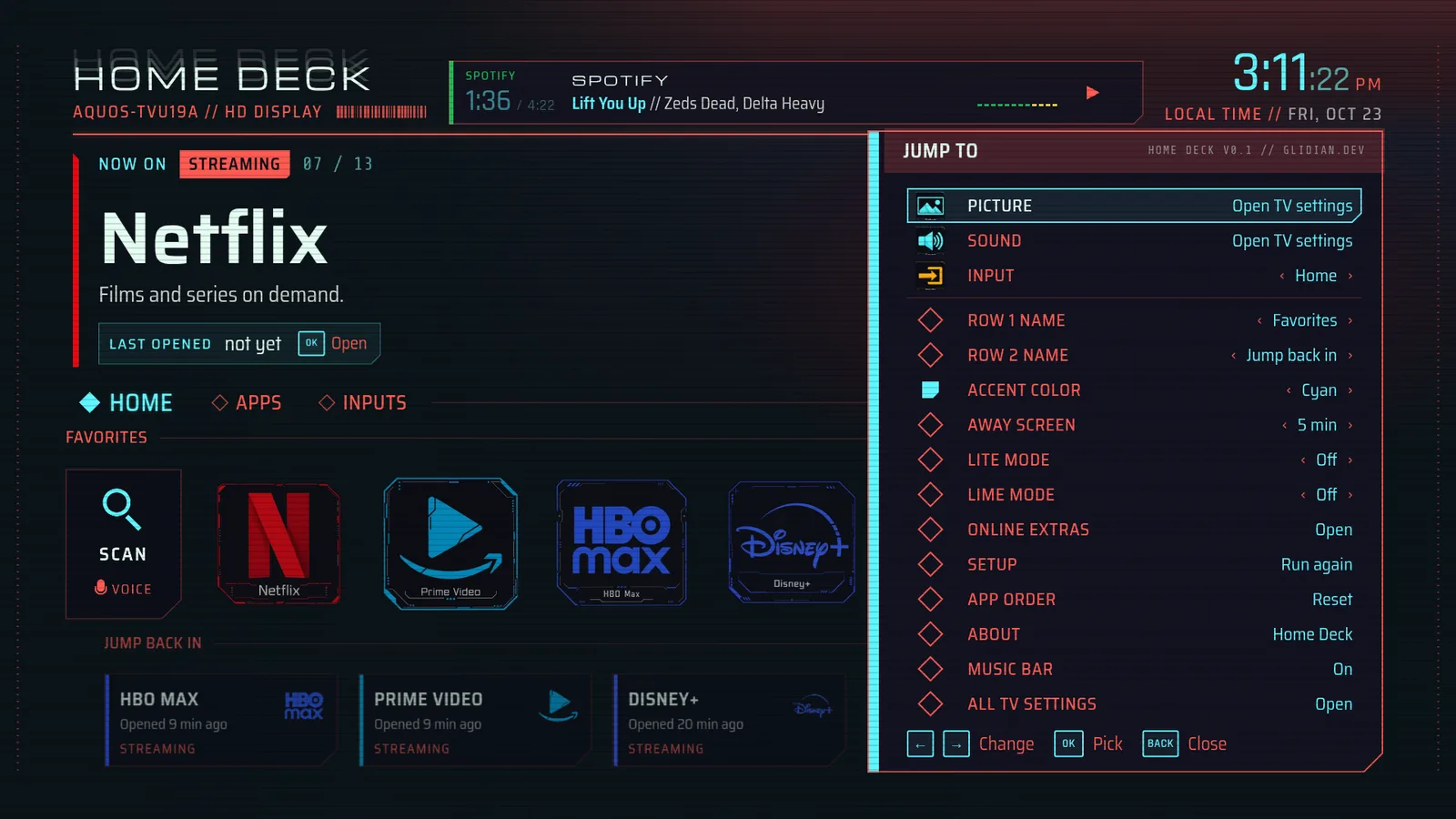
Every app gets its own tile, drawn in Home Deck’s style. Apps without one get a badge made from their own icon instead.






































Leave it alone and the screen dims to a clock that moves every 20 seconds, so nothing burns in. Pick 1, 3, 5 or 10 minutes. The same screen is also a screen saver for your TV, for when you’re in another app.
On the TV, open Settings > Device Preferences > About and press OK on Build seven times. Then turn on USB debugging or Network debugging in Developer options.
Find the TV’s IP address in Settings > Network, then connect from a computer with adb and accept the prompt on the TV.
adb connect 192.168.1.50:5555Download homedeck.apk from the v0.1 release and install it.
adb install homedeck.apkPoint the Home button at Home Deck. Some TVs also need the stock launcher switched off; the README covers that and how to undo it.
adb shell cmd package set-home-activity dev.glidian.homedeck/.HomeActivityThe README has the full steps, the optional music bar setup, how to switch back and how to build from source.
Your favorites, app order, names and settings stay on the TV. The music bar needs notification access because that’s the only way Android shares what’s playing, but it only reads the title, artist and time, never your notifications. The internet permission is just for the weather, which is off until you turn it on.
ALSO BY GLIDIAN: KIDŌ A COMMAND-CENTER HOME SCREEN
Like this? I’m open to work, freelance or with a team: who’s behind this.