Main panels
Your five favorite apps as big cards, with a readout under them: channel, real Wi-Fi strength, when the app last updated, and the link quality.
A command-center home screen for Android TV. A seven-segment clock, big Mincho kanji, a honeycomb of channels, live readouts and a status block that lights up in the color of whatever you’re on. No ads, no rows of recommendations, no internet access at all.
Click the screen to take the remote. Arrow keys move, Enter opens, hold Enter for options, Esc goes back.
| ARROWS | Move around. Left and right run through everything in reading order. |
|---|---|
| OK | Open the app or input. |
| HOLD OK | On an app: move, pin, unpin or app info. On Settings: sound and theme. |
| BACK | Return to the main panels. |
Your five favorite apps as big cards, with a readout under them: channel, real Wi-Fi strength, when the app last updated, and the link quality.
Every other app as a honeycomb, with a link status panel listing them all.
Your HDMI inputs, Wi-Fi and Settings. Plug something in and an INPUT DETECTED panel drops in; press OK to switch to it.
A seven-segment clock, a live data block (free memory, uptime, inputs), section tabs and a footer log of what you’ve been doing.
A system check once per TV boot, sections that trace themselves in as you arrive, a launch screen when you open an app, soft console beeps, a faint hex grid and scanlines.
Hold OK on an app to move it, pin it to the main panels or unpin it. Install or remove an app and KIDŌ rebuilds itself.
Nothing flashes quickly: the input alert pulses slowly, and holding an arrow moves at a steady pace instead of strobing colors across the screen.
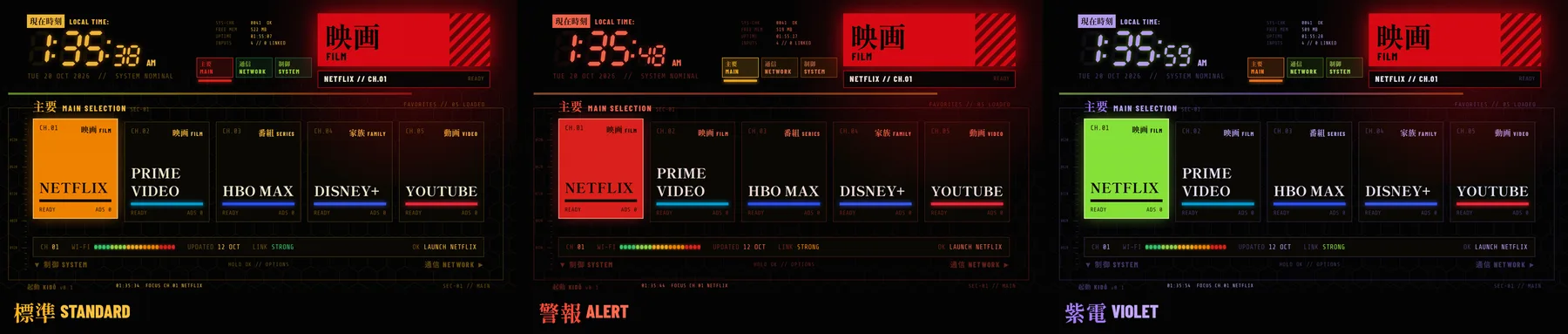
Three color themes, picked by holding OK on Settings. Pick one here and the page and the demo above switch with it.
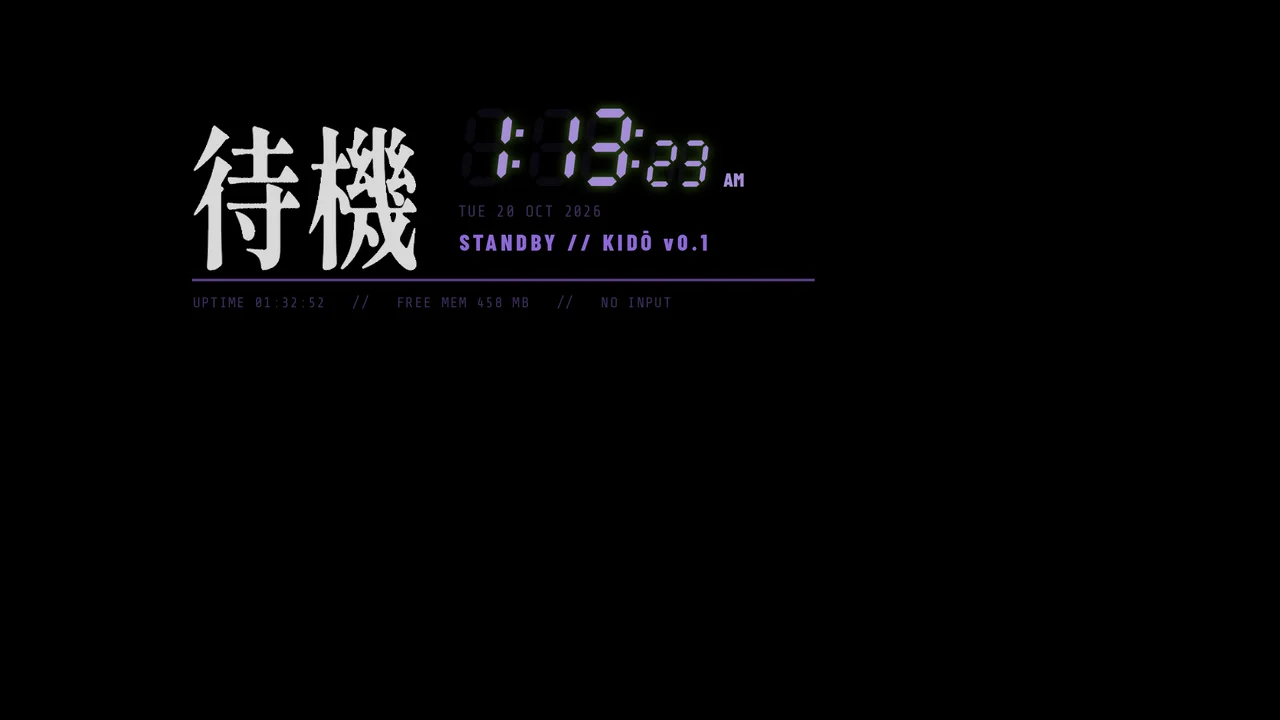
KIDŌ Standby is a matching screensaver: a big 待機 (standby), the clock and a few live readouts on black. The whole block glides to a new spot every 20 seconds, so nothing stays in one place long enough to burn in. Leave the demo alone for a minute and a half to see it.
On the TV, open Settings > Device Preferences > About and press OK on Build seven times. Then turn on USB debugging or Network debugging in Developer options.
Find the TV’s IP address in Settings > Network, then connect from a computer with adb and accept the prompt on the TV.
adb connect 192.168.1.50:5555Download kido.apk from the v0.1 release and install it.
adb install kido.apkPoint the Home button at KIDŌ. Some TVs also need the stock launcher switched off; the README covers that and how to undo it.
adb shell cmd package set-home-activity dev.glidian.kido/.KidoActivityThe README has the full steps, how to uninstall safely and how to build from source. To clear out the rest of a TV's preinstalled clutter, see cleanyourtv.
KIDŌ has no internet permission, so it can’t send anything anywhere. It asks for two permissions, both only to read the Wi-Fi signal for the readouts. Your pinned apps, theme and sound setting stay on the TV.